

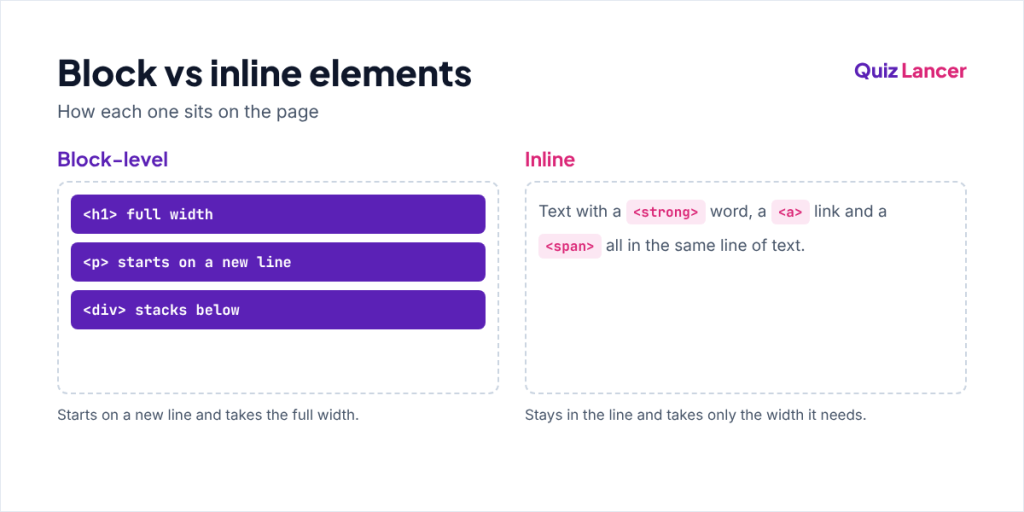
Block and inline elements in HTML are the two basic ways an element sits on a page. A block-level element starts on a new line and takes the full width of its container, while an inline element stays inside the line of text and takes only the width it needs. This guide explains both with examples, a comparison table and the CSS display property, and ends with a 25-question MCQ quiz for diploma, engineering, BCA and BCS students and freshers.
What Are Block-Level Elements?
A block-level element always starts on a new line and stretches to the left and right edges of its container. The element after it is pushed to the next line, so block elements stack one below the other. They are used for the big parts of a page, such as sections, paragraphs, headings and lists.
- Starts on a new line, and the next element appears below it.
- Takes the full width of its parent by default.
- Accepts
width,height,marginandpaddingon all four sides. - Common examples:
<div>,<p>,<h1>to<h6>,<ul>,<ol>,<table>,<form>,<header>,<section>,<article>and<footer>.
<h1 style="border: 1px solid red">Heading 1</h1>
<p style="border: 1px solid green">A paragraph is a block-level element.</p>
Open this code in a browser and you will see that both borders stretch across the whole page, even though the text is short. The paragraph also starts on its own line below the heading.
What Are Inline Elements?
An inline element does not start on a new line. It sits inside a line of text and is only as wide as its content, so other text and inline elements can sit next to it. Inline elements are used to mark small parts of text, such as a bold word, a link or a highlighted phrase.
- Stays on the same line as the content around it.
- Takes only the width of its content.
- Ignores
widthandheight, and top and bottom margins do not push other content away. - Common examples:
<span>,<a>,<strong>,<em>,<mark>,<code>,<label>and<img>.
<p>This is a <strong>bold</strong> word and an <em>italic</em> word in the same line.</p>Here <strong> and <em> do not break the line. They stay inside the paragraph and take only the space their words need.
Block and Inline Elements in HTML: Comparison Table
| Feature | Block-level elements | Inline elements |
|---|---|---|
| New line | Start on a new line | Stay on the same line |
| Width | Full width of the parent | Only the width of the content |
| width and height | Can be set | Ignored (except on <img> and form fields) |
| Margin and padding | Work on all four sides | Left and right push content; top and bottom do not |
| Can contain | Block and inline elements | Text and other inline elements |
| Used for | Page sections and layout | Small parts of text |
| Examples | <div>, <p>, <h1>, <ul> | <span>, <a>, <strong>, <img> |
Changing the Display with CSS
Block and inline are only the default behaviour. The CSS display property can change any element. display: block makes an element start on a new line and take the full width, display: inline makes it stay in the line, and display: none removes it from the page completely.
A third value, display: inline-block, mixes both. The element stays in the line like an inline element, but you can give it a width, a height and top and bottom spacing like a block. It is often used for buttons, badges and menu links.
.menu a {
  display: inline-block;   /* links stay side by side */
  padding: 10px 16px;      /* top and bottom padding now take space */
  width: 120px;            /* width now works */
}
Some elements have their own default values: <li> uses list-item, <table> uses table, and <button> behaves as inline-block in modern browsers. Modern layouts also use display: flex and display: grid on a parent to place its children in rows and columns.
Nesting Rules
A block element such as <div> can hold both block and inline elements. An inline element such as <span> should hold only text and other inline elements. One special rule trips up many students: a <p> can hold only inline content, so it cannot contain a <div>, a list or another paragraph. If you write one, the browser closes the paragraph early.
The link element <a> is an exception in HTML5. It can wrap block content, for example a whole card made of a <div>, a heading and a paragraph, as long as there is no other link or button inside it. You can check the content rules of any tag in the MDN guide to block-level content.
Common Mistakes with Block and Inline Elements
- Setting width on a span: nothing happens, because normal inline elements ignore width and height. Use
display: inline-blockorblock. - Adding top margin to a link: the space does not appear. Vertical margins need a block or inline-block element.
- A small gap under an image:
<img>is inline and sits on the text baseline.display: blockon the image removes the gap. - Centering the wrong way:
text-align: centeron a parent centers its inline content, whilemargin: 0 autocenters a block element that has a width.
Block and Inline Elements MCQ Quiz
Test yourself now. The quiz has a pool of 25 questions and every attempt gives you 10 random ones. Press Submit at the end to see your score, the correct answers and a short explanation for each question. For more practice on all HTML basics, try our HTML MCQ questions quiz.
Frequently Asked Questions
Can an element be both block and inline?
Every element has one default display value, but CSS can change it. With display: inline-block an element gets a mix of both: it stays in the line like inline, but accepts a width and height like block.
Can I put inline elements inside block-level elements?
Yes. Block elements such as <div> and <p> normally contain inline elements such as <span>, <a> and <strong>. The opposite, a block element inside a normal inline element, is invalid HTML.
Is img inline or block?
<img> is inline by default, so it sits in the line of text. Unlike <span>, it does accept width and height, because the browser knows the size of the image.
Conclusion
Block and inline elements in HTML decide how every part of a page is placed: block elements build the layout line by line, and inline elements style the text inside them. Learn the common examples, remember that inline elements ignore width and height, and use the display property when you need to change the default. Then take the quiz above, read the explanations for any wrong answers, and retake it for a new set of 10 questions.
Keep practising HTML
Get one new quiz every week. Join Quiz Lancer on Telegram →

Full-stack developer with 5+ years of experience in PHP, Laravel and JavaScript. I create these quizzes to help students and freshers prepare for web development interviews.